Recently, I wanted to auto-deploy one of my websites using GitHub Actions. The website is an SPA based on SvelteKit and I want to deploy it to my VPS using rsync.
The problem is finding a tutorial about using rsync with GitHub Actions is hard. Most of the tutorial is deploying static sites to GitHub Pages.
So, after some googling, here is what I found.
Create and Add SSH Private Key to GitHub Secrets
To make a connection from GitHub Actions to VPS, we need to create SSH Private Key and add it to GitHub Secrets.
The best way to make an SSH key is to create it locally using this command.
IMPORTANT: Do not add a passphrase to the key, so we don’t need to send a passphrase to GitHub Actions.
cd ~/.ssh

ssh-keygen -t ed25519 -C "[email protected]" -f deploy_key
Now we have
deploy_keyanddeploy_key.pubin the~/.sshdirectory.Next, we need to add the content of
deploy_keyto GitHub Secrets. The Secrets can be found inSettings > "Secrets and variables" > Actions > New repository secret.In my case, I add
SSH_KEYas the name and paste the content ofdeploy_keyas the value.In the VPS we need to add the content of
deploy_key.pubto~/.ssh/authorized_keys. In home directory, create.sshdirectory if it doesn’t exist.mkdir ~/.sshThen, create an
authorized_keysfile and paste the content ofdeploy_key.pubto it.touch ~/.ssh/authorized_keysIMPORTANT: Make sure to change the permission of
.sshdirectory to700andauthorized_keysto600or400.chmod 700 ~/.ssh chmod 600 ~/.ssh/authorized_keysCreate the rest of the Secrets that GitHub Actions would use, it is good practice for a public repository to use Secrets for sensitive information.
DEPLOY_DIR # The target directory in VPS, e.g. /var/www
HOSTNAME # The hostname or IP of VPS
PORT # The port of ssh connection
USERNAME # The account name for the ssh in VPS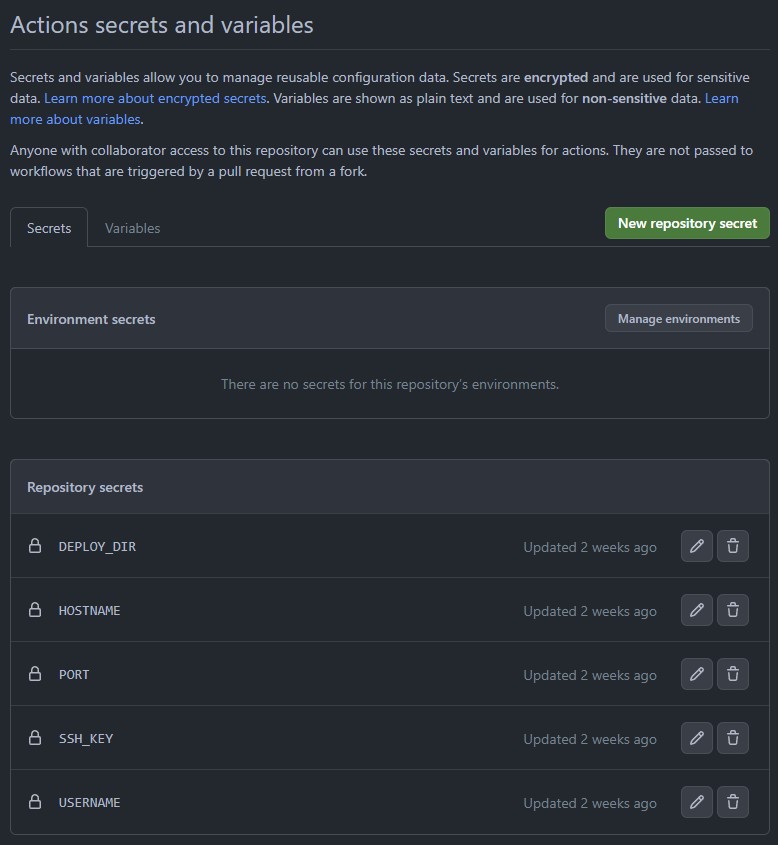
Setup GitHub Actions
To set up The GitHub Actions workflow we need to create a cd.yml file in the .github/workflows directory.
- Create a workflow directory if it does not exist and create a
cd.ymlfile.mkdir -p .github/workflows touch .github/workflows/cd.yml - Add the following content to the
cd.ymlfile.name: Deploy on: push: branches: [ main ] jobs: deploy: runs-on: ubuntu-latest steps: - uses: actions/checkout@v3 - name: Build with Node.js 20 uses: actions/setup-node@v3 with: node-version: 20 cache: 'npm' - run: npm ci - run: npm run build - name: Configure SSH run: | mkdir -p ~/.ssh/ echo "$SSH_KEY" > ~/.ssh/staging.key chmod 600 ~/.ssh/staging.key cat >>~/.ssh/config <<END Host prod_server HostName $SSH_HOST User $SSH_USER Port $SSH_PORT IdentityFile ~/.ssh/staging.key StrictHostKeyChecking no END env: SSH_USER: ${{ secrets.USERNAME }} SSH_KEY: ${{ secrets.SSH_KEY }} SSH_HOST: ${{ secrets.HOSTNAME }} SSH_PORT: ${{ secrets.PORT }} - name: Deploy to VPS with SSH run: rsync -avrzh --update --delete ./build/ ${{ secrets.USERNAME }}@prod_server:${{ secrets.DEPLOY_DIR }}
The key to using rsync in GitHub Actions is configuring SSH connection in the workflow.
#...
jobs:
  deploy:
    #...
    - name: Configure SSH
      run: |
      mkdir -p ~/.ssh/
      echo "$SSH_KEY" > ~/.ssh/staging.key
      chmod 600 ~/.ssh/staging.key
      cat >>~/.ssh/config <<END
      Host prod_server
          HostName $SSH_HOST
          User $SSH_USER
          Port $SSH_PORT
          IdentityFile ~/.ssh/staging.key
          StrictHostKeyChecking no
      END
      env:
      SSH_USER: ${{ secrets.USERNAME }}
      SSH_KEY: ${{ secrets.SSH_KEY }}
      SSH_HOST: ${{ secrets.HOSTNAME }}
      SSH_PORT: ${{ secrets.PORT }}
Then we can use rsync to deploy our site to VPS.
#...
jobs:
  deploy:
      #...
      - name: Deploy to VPS with SSH
        run: rsync -avrzh --update --delete ./build/ ${{ secrets.USERNAME }}@prod_server:${{ secrets.DEPLOY_DIR }}
This step will deploy the content of the ./build directory to DEPLOY_DIR.
The rest of the workflow is just installing dependencies and building the project.
References
- My website that using this workflow hasssan/tulkit.
- How to setup CI/CD for Node using GitHub Actions with SSH Keys deployed on Ubuntu Server | by Nibi Maouriyan.